Research Functions
The OmniRank Research module is your starting point for understanding how search engines and AI models perceive your content. It provides actionable insights into your page's performance, benchmarks it against competitors, and tracks your search engine ranking positions (SERP) over time.
The Research module is divided into two main tabs: Analyze Any URL and Monitored Keywords.
1. Analyze Any URL (SEO & AEO Audit)
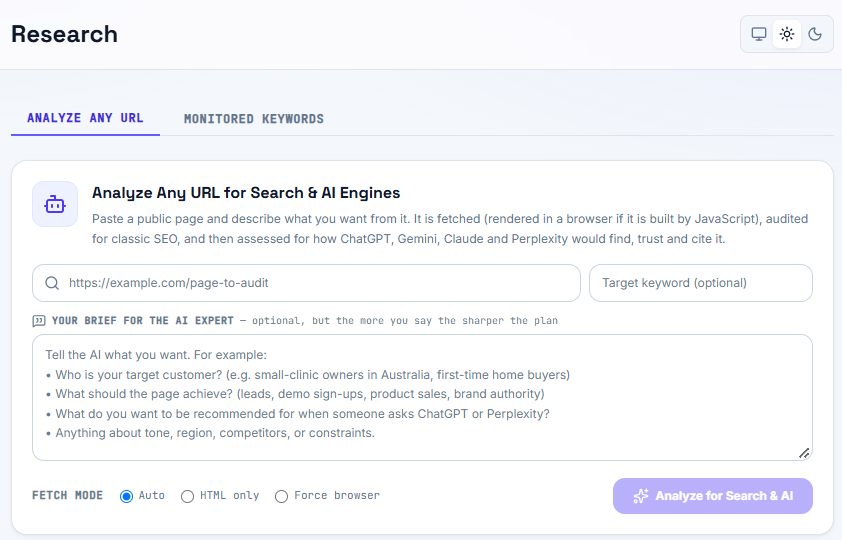
The Analyze Any URL tab allows you to run a deep-dive audit on a specific public webpage. OmniRank evaluates the page for classic SEO (Search Engine Optimization) and assesses how AI engines like ChatGPT, Gemini, Claude, and Perplexity would find, trust, and cite your content (AEO - Answer Engine Optimization).
How to Run an Audit
- Enter the URL: Paste the full public URL of the page you want to audit.
- Target Keyword (Optional): If you have a specific keyword you are trying to rank for, enter it here to guide the analysis.
- Your Brief for the AI Expert: This is a crucial step for accurate AEO. Provide a detailed brief to help the AI understand your specific goals. The sharper the plan, the better the insights.
- Target Customer: (e.g., "small-clinic owners in Australia," "first-time home buyers")
- Page Goal: (e.g., leads, demo sign-ups, brand authority, product sales)
- AI Prompt Target: What specific user questions should trigger ChatGPT or Perplexity to recommend your page?
- Context: Add any information about tone, region, competitors, or constraints.
- Select Fetch Mode:
- Auto: OmniRank automatically determines the best way to load the page.
- HTML only: Best for static pages; fetches the raw source code quickly.
- Force browser: Use this if your site relies heavily on JavaScript (e.g., React, Vue, Angular) to render content.
Click Analyze for Search & AI to generate your comprehensive report.
Don't skip the AI Brief! Because AI engines synthesize answers rather than just listing links, giving the audit tool context about your exact target audience helps it grade your "AI Readiness" much more accurately.
2. Competitive Analysis
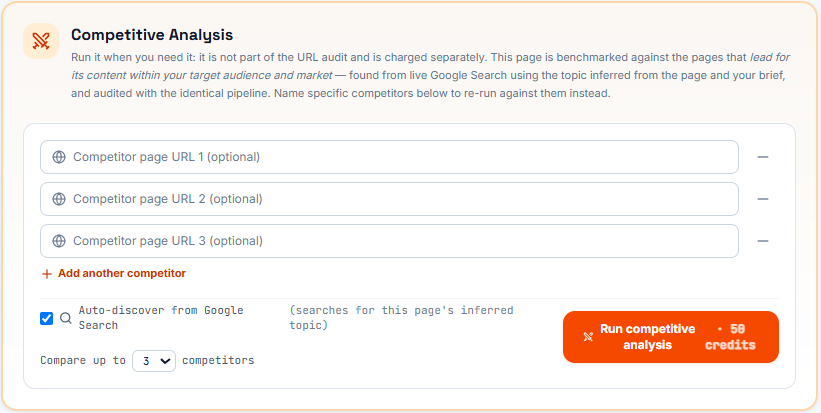
Once your initial URL audit is complete and the report is displayed, you unlock the ability to run a Competitive Analysis. This allows you to benchmark your audited page directly against the pages that lead your market for that specific topic.
OmniRank uses the keywords and topics inferred from your initial audit to power this comparison.
Running a Competitive Analysis
You have two ways to select competitors to benchmark against:
- Manual Entry: Enter specific competitor URLs that you want to compare against your page.
- Auto-Discover from Google Search: Check this box to let OmniRank automatically find your top competitors. The system will run a live Google Search using the inferred topic from your page and audit the top-ranking results using the identical pipeline. Starter Plan: Compare up to 3 competitors at once. Higher Plans: Compare up to 5 competitors at once.
Running a Competitive Analysis is an advanced feature and is charged separately from the standard URL audit. As shown on the execution button, a standard competitive analysis requires 50 credits, 20 credits to start the analysis and 10 credits per competitor URL.
3. Monitored Keywords
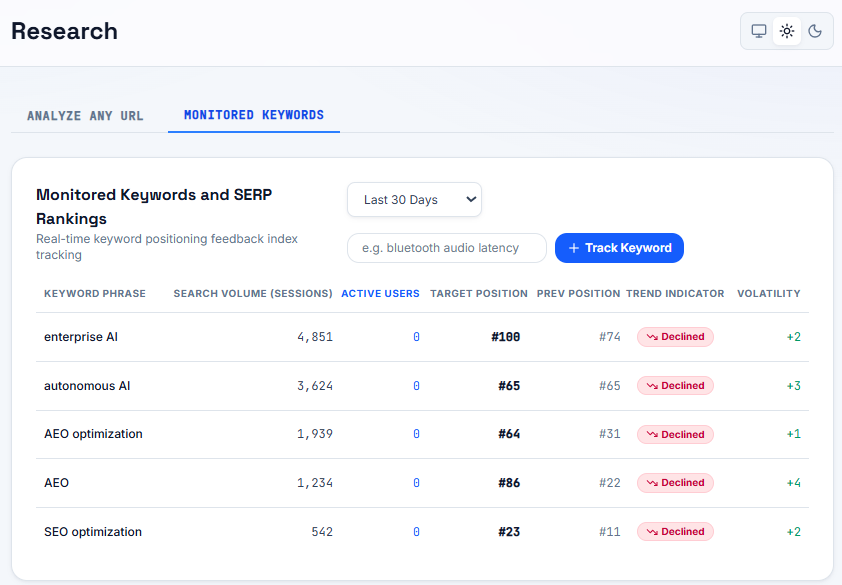
The Monitored Keywords tab is where you track your ongoing visibility and SERP rankings over time. This provides real-time keyword positioning feedback so you can measure the impact of your SEO and AEO optimizations.
How to Track Keywords
- Navigate to the Monitored Keywords tab.
- Enter your desired search phrase into the input field (e.g., bluetooth audio latency).
- Click the + Track Keyword button.
Understanding the Tracking Metrics
You can filter your keyword data by time ranges (e.g., Last 30 Days). The tracking table provides the following insights:
- Keyword Phrase: The specific term or question being tracked.
- Search Volume (Sessions): The estimated monthly search volume for this term.
- Active Users: The number of active users currently interacting with this term (if applicable to your connected analytics).
- Target Position: Your current ranking position on the search engine results page (SERP).
- Prev Position: Your ranking position during the previous time period.
- Trend Indicator: A visual tag showing if your ranking has Improved, Declined, or remained stable.
- Volatility: A score (e.g., +2, +4) indicating how much the SERP rankings for this specific keyword are fluctuating across the web. High volatility means the search engine is currently reshuffling its top results.
Rankings are updated dynamically based on the timeframe selected in the dropdown menu. Monitor your "Trend Indicator" and "Target Position" closely after implementing changes suggested by the Analyze Any URL tool.