Team Management
The Team tab in OmniRank allows workspace owners to seamlessly invite colleagues, assign specific access levels, and manage active subscription seats. By configuring your team, you can enable cross-functional collaboration while keeping sensitive billing and configuration settings secure.
Roles and Permissions
Cleanly delineated role permissions prevent accidental configuration overrides while enabling cross-functional collaboration within workspaces:
| Role Tier | Target Personas | Key Permissions & Capabilities |
|---|---|---|
| Tenant Admin | Workspace Owners & Leads | Billing management, subscription changes, credit pack purchases, teammate invitations, role adjustments, SSO configuration, and store integrations. |
| Standard User | Marketers & Analysts | Run URL audits, generate content and view live reports without access to financial or destructive settings. |
Adding a Teammate
Workspace admins can easily provision new users through self-service invitations. These invitations respect the seat allowances configured in your current subscription plan.
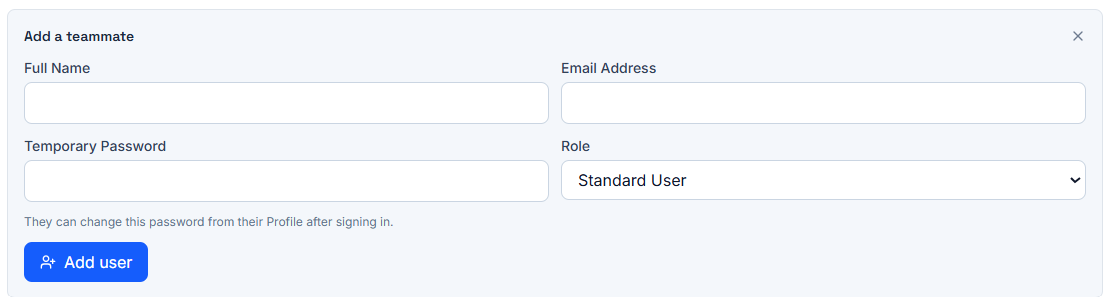
To add a new member to your workspace:
- Navigate to the Team tab.
- Click the Add User button to expand the "Add a teammate" form.
- Fill out the required information:
- Full Name: Enter the teammate's first and last name.
- Email Address: Enter the email address they will use to log into OmniRank.
- Temporary Password: Provide an initial password for the user. (Note: The user can securely change this password from their Profile immediately after signing in).
- Role: Select either
Standard UserorTenant Adminfrom the dropdown menu, depending on the level of access required.
- Click the blue Add user button to create the account.
Managing Existing Members
Below the invitation form, you will find a list of all current users in your workspace, displaying their name, email address, and their assigned role badge (e.g., Tenant Admin).
Instant Member Revocation
If a teammate changes roles or departs the company, they can be removed immediately by a workspace admin. Removing a user:
- Cleanly closes and invalidates their active sessions.
- Instantly frees up the subscription seat, allowing you to invite a replacement without incurring extra charges.