Student Plan Validation and Setup
The Student Plan offers specialized features and pricing for eligible students. This guide explains how to access and set up your Student Plan.
Accessing the Student Plan
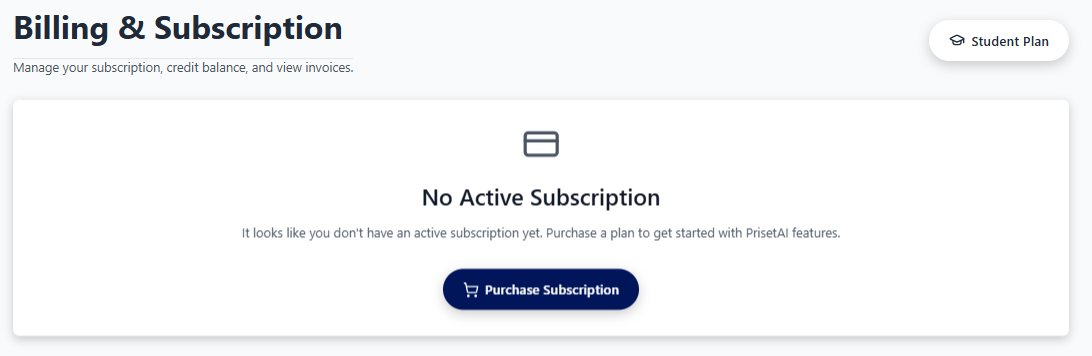
The Student Plan is easily accessible from the billing section of your account.
- Navigate to the Billing page.
- Locate and click on the Student Plan button to initiate the validation process.
You can only access the Student Plan if you don't have any other subsciption yet. If you have purchased some other plan in the past the Student Plan button will not be visible. Also note that only one Student Plan license is allowed per MAC Address.
Student Plan Setup
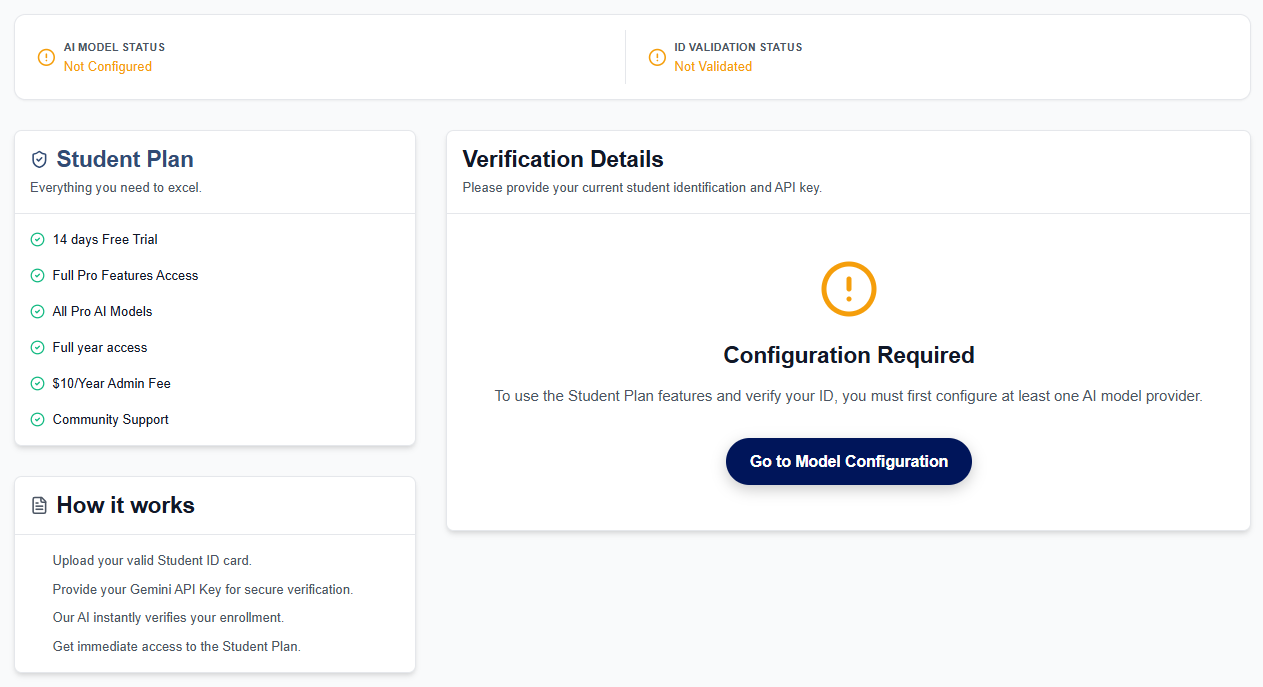
Once you have clicked the Student Plan button, you will be directed to the setup page.
Functionality
The Student Plan setup page allows you to:
- Model Configuration: Provide your own API Key from the preffered AI Provider. This key will be used to validate the provided Student ID Card or to check if you are using a student email.
- Verify Eligibility: Provide the necessary academic documentation to confirm your student status. We may also check to see if you are using an email linked to an academic institution.
- Complete Activation: After the setup is successfully finalized you will be eligible for the student discount. But, in order to lock in the student benefits and continue using this particular plan, you will need to pay the annual Student Plan admin fee during the trial period.
While Google's Gemini API free tier (via AI Studio) is a great starting point, it is subject to strict rate limits. You can monitor your current usage here.
Because Priset's Glass Box harness and sub-agents analyze deep, whole-codebase context to build your Implementation Blueprints, executing a full "Local CTO" weekend sprint can quickly exhaust free-tier quotas. To utilize Google's most advanced frontier models without limits—and to unlock Gemini's absolute zero-retention IP protection—we recommend switching to Vertex AI (requires enabling billing in your Google Cloud account—atm this gives you some free Google Gemini credits that you can use with Priset!).