Billing & Subscriptions
This page provides an overview of your current subscription plan and allows you to manage your billing details.
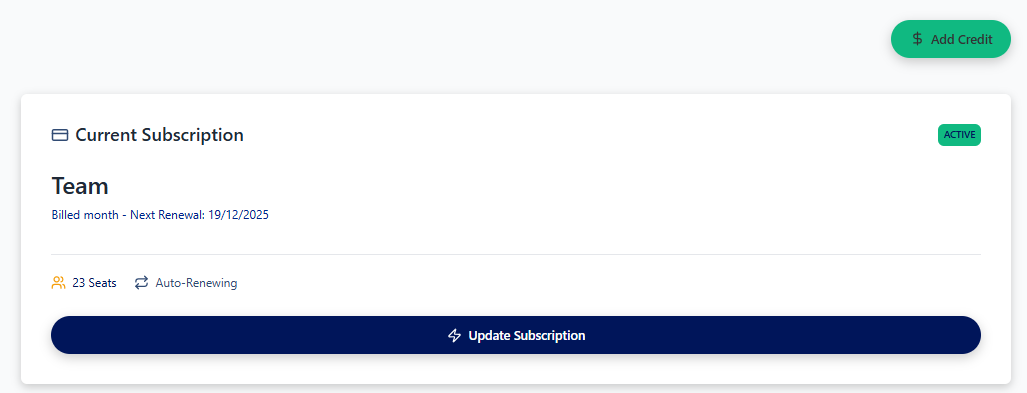
Current Subscription
This section displays the real-time status of your subscription.
- Plan Name: Shows the name of your active plan (e.g., "Team").
- Status: Indicates whether your subscription is "ACTIVE".
- Renewal Information: Details the billing cycle and the date of your next renewal.
- Seats: Shows the number of user seats included in your plan.
- Auto-Renewing: Confirms if the subscription is set to renew automatically at the end of the billing cycle.
Manage Subscription
We have partnered with Stripe, a secure and trusted payment platform, to handle all billing and subscription management.
- Update Subscription: Clicking this button will securely redirect you to our Stripe-powered billing portal. Within the portal, you can:
- Update your payment method.
- Change your subscription plan.
- Cancel your subscription.
Recent Invoices
The rest of the page shows the table listing all your billing history. You can download your invoices by clicking on the View PDF link.
Add Credits (Legacy Plans Only)
If you run out of credits in the middle of your subscription period you can use the Add Credit Button to top up your Priset credits. These credits are then used for AI generations.
Clicking on the Add Credit Button opens a dialog where you can:
- Enter an Amount: Specify the amount in USD you wish to add.
- View Credits: The system will calculate and display the number of credits you will receive.
- See Discounts: Any applicable discounts (ranging from 0-20%) will be shown.
- Proceed to Payment: Once you confirm the amount, you will be redirected to Stripe to complete the payment securely.
You can add credits to your account at any time. Team subscription offers significant volume discounts (up to 20%).