Using Sessions
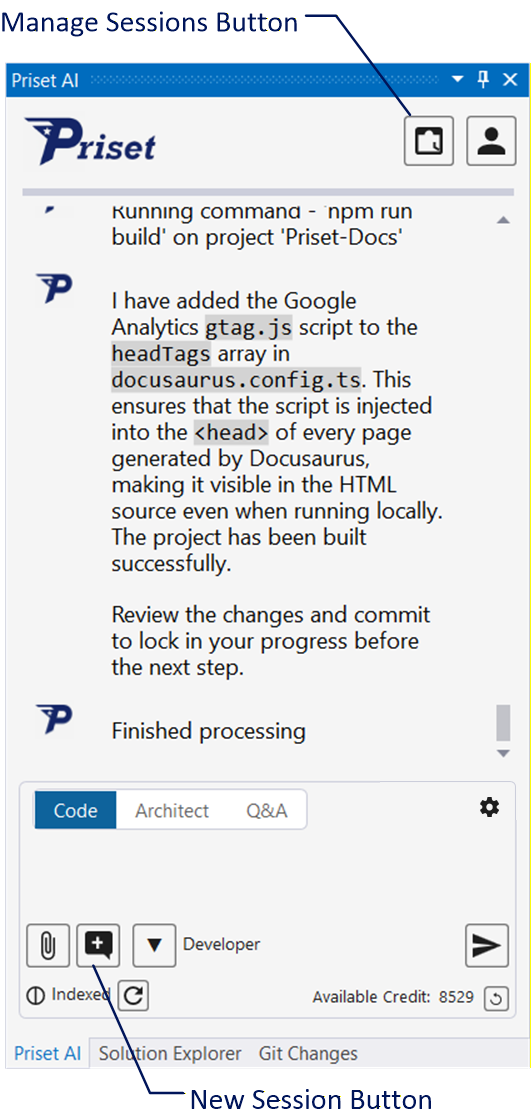
Start a New Session For New Tasks
When you log in into Priset a new session is started automatically, but you should always start a new session when you start a new task that is unrelated to the previous changes made. This will minimise the context of the session and thus save credits that are spent.
Use The Same Session To Fix Things / Clarify
After you submit your prompt, Priset will display various messages to highlight what it's doing and why. Upon finishing the task it will write, "Finished..." and summarize the task that was done.
However, it is possible that Priset will ask you to provide more details. For example, your prompt was something like this:
My site is using google reCAPTCHA v3.
In the client project there is the contact form that connects to a 3rd party API,
which now requires a proper "captchaToken" to be passed in.
Update the code so that it will pass this additional "captchaToken" parameter.
The Priset will complain that your prompt lacks details about the 3rd Party API, and so it's unable to perform the task until you would provide more details. So, you should submit a follow-up prompt (in the same session) to provide more details, like for example:
The below curl command describes the 3rd party API endpoints:

<curl command>
When your prompt lacks details, Priset will do one of the following two things:
- Write that it's unable to finish the task due to the lack of details and stop processing your prompt. You should provide details in the follow-up prompt.
- Open a dialog box and request you provide a value / answer to the specific question. After you provide the answer, it will continue to process your prompt.
It is also possible that Priset would finish the change and successfully build the application, but after you run it, you discover there is an unhandled exception. Use the same session to describe the problem and provide more details, for example:
I now get the exception <exception details>.
Fix this.
You can stop the processing of the prompt at any time. To continue the processing, you can simply type continue and click on the Run Button again.
Be aware that as your session grows bigger and collects more information that will increase your prompt and consequently would take more credits. Therefore, after you finish the task and all issues are fixed, check in the changes and start a new session for new tasks.
Manage Sessions
You can manage your previous sessions by clicking on the Manage Sessions button. This allows you to view a list of all your previously executed sessions.
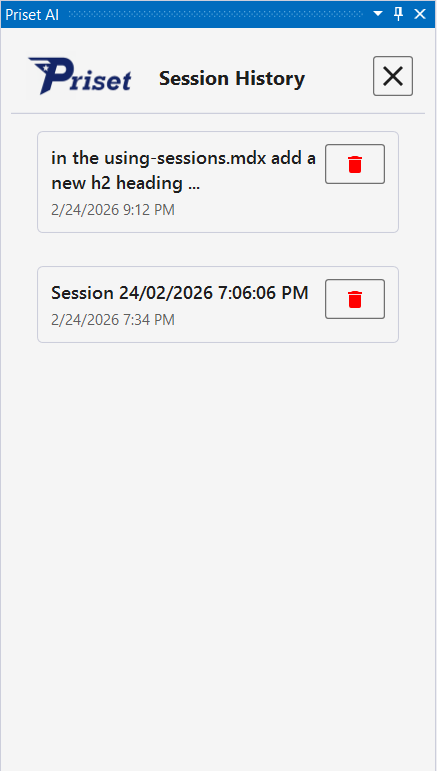
From the session management view, you can:
- Resume a Session: Click on a previous session to go back to it. This allows you to continue exactly from where you left off, maintaining the context of that specific task.
- Delete a Session: If a session is no longer needed, you can delete it to keep your session list organized.